Setup
If you are just getting started with Airlift, we recommend using the new Airlift component.
In this step, we'll:
- Install the example code and review the project structure
- Set up a local environment
- Ensure we can run Airflow locally.
Install example code
First, create a fresh virtual environment using uv and activate it:
pip install uv
uv venv
source .venv/bin/activate
Next, install Dagster and verify that the dagster CLI is available:
uv add dagster
dagster --version
Finally, install the tutorial example code:
dagster project from-example --name airlift-federation-tutorial --example airlift-federation-tutorial
Project structure
This tutorial example contains the following files and directories:
airlift_federation_tutorial
├── constants.py: Contains constant values used throughout both Airflow and Dagster
├── dagster_defs: Contains Dagster definitions
│   ├── definitions.py: Empty starter file for following along with the tutorial
│   └── stages: Contains reference implementations for each stage of the migration process.
├── metrics_airflow_dags: Contains the Airflow DAGs for the "downstream" Airflow instance
└── warehouse_airflow_dags: Contains the Airflow DAGs for the "upstream" Airflow instance
Run Airflow instances locally
This tutorial involves running two local Airflow instances, which you can do by following commands from the root of the airlift-federation-tutorial directory.
First, install the required Python packages:
make airflow_install
Next, scaffold the two Airflow instances required for this tutorial:
make airflow_setup
Finally, run the two Airflow instances with environment variables set.
In one shell, run:
make warehouse_airflow_run
In a separate shell, run:
make metrics_airflow_run
This will run two Airflow Web UIs, one for each Airflow instance. You should now be able to access the warehouse Airflow UI at http://localhost:8081, with the default username and password set to admin.
You should be able to see the load_customers DAG in the Airflow UI:
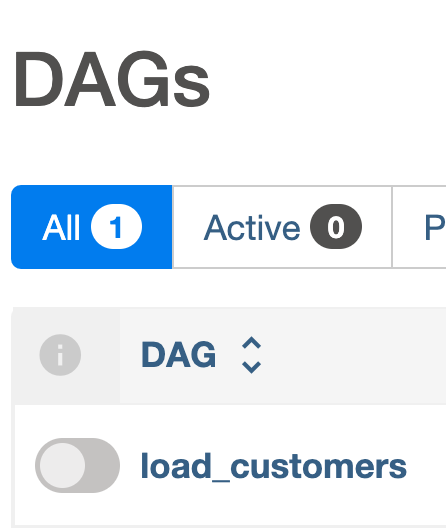
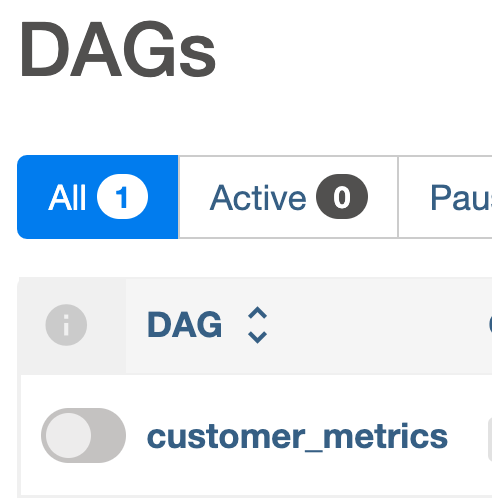
Similarly, you should be able to access the metrics Airflow UI at http://localhost:8082, with the default username and password set to admin.
You should be able to see the customer_metrics DAG in the Airflow UI:
Next steps
In the next step, Observe multiple Airflow instances from Dagster, we'll add asset representations of our DAGs and set up lineage across both Airflow instances.